Log activities and photos
Families see each activity on their own child's feed.
-
Start a new activity
On the Today tab, tap + at the top (Log activity on iPad).
For one child, open them from the Students tab and tap + on their Activities tab. That child is already chosen.
-
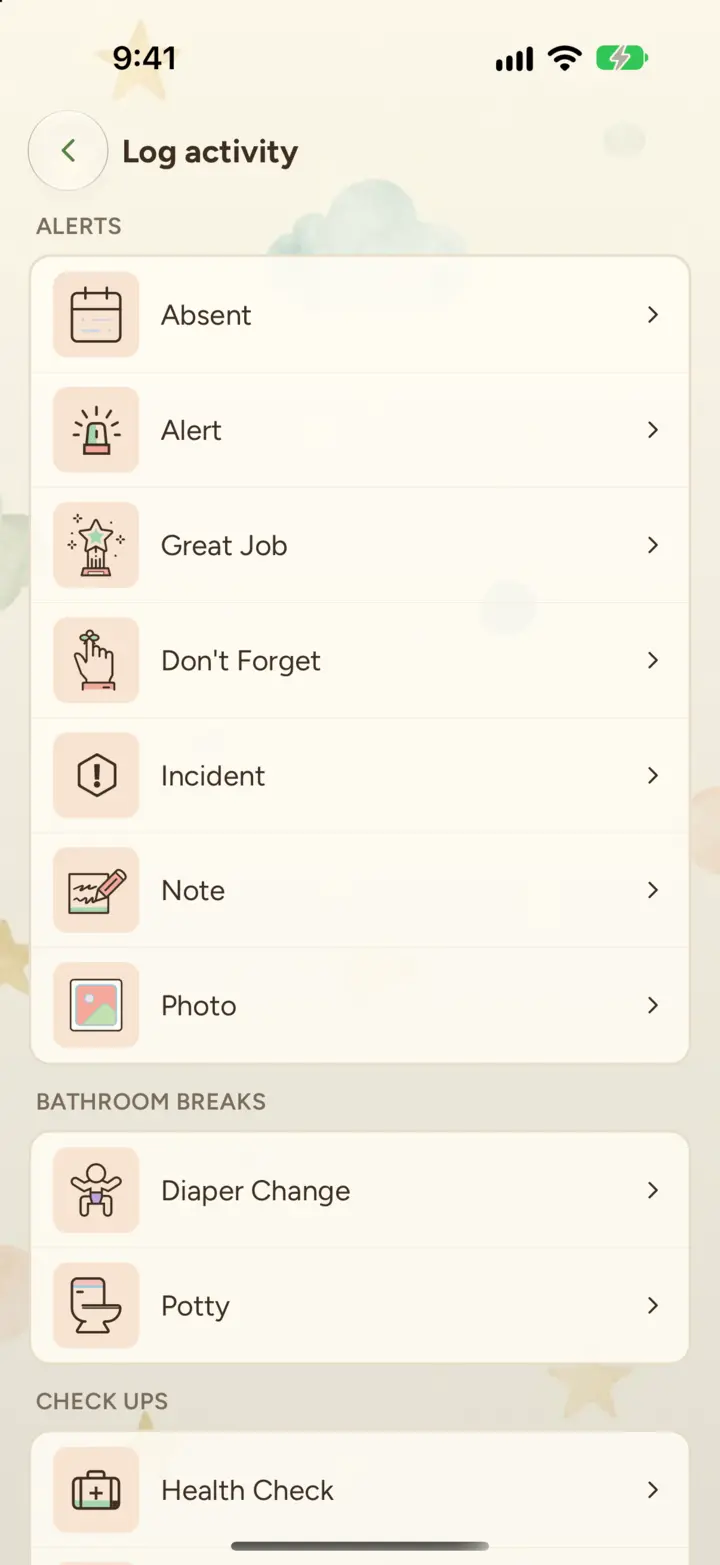
Choose the activity type
The list shows the types your director turned on for your room, such as Meal Time, Nap Time, Photo, Diaper Change, Potty, Note and Incident.
-
Choose the children
Tap each child it's for. To log for the whole room, tap every child. Turn on On site only to list only the children at the center now, or search by name. Then tap Continue.
-
Add photos and details
Tap the paperclip to add up to 10 photos, videos or PDFs: choose from your library, or take a photo or video.
Add a description if you like. For Potty and Diaper Change, tap Wet, BM or Accident to fill it in. Some types also ask for a quantity, and you can change the time if it happened earlier.
-
Tap Log activity
Wait for photos and videos to finish uploading first.
Incidents
When you log an Incident, you can turn on Add internal behavior log. That log is visible only to staff, not families.
Help me write
Directors and owners at our founding centers see Help me write under the description, for a quick start on the note. Using Help me write (pilot)
Still stuck?
Email [email protected] and we'll help. For questions about your child, schedule or bill, contact your center.